How to Fill Out IRS Form 5564 Step-by-Step
By CP2000Response Editorial Team | Reviewed for legal context by David McNickel
Whether you are working with the response form attached to a CP2000 notice or with Form 5564 as it appears in a CP3219A (Statutory Notice of Deficiency), completing the form correctly is essential.
This is because errors, omissions, or misunderstood checkboxes can result in an unintended agreement with the IRS, a response that is not processed, or a waiver of rights you intended to preserve.
This article walks through the completion of both the CP2000 response form and Form 5564 as they appear in practice, with specific guidance on each section, signature requirements, what to attach, and the most common completion errors. For more forms and document templates, check the section hub page.
Before You Begin: Gather What You Need
Before filling out any section of the response form, have the following in front of you:
- The complete CP2000 or CP3219A notice, including all pages
- Your filed tax return for the year in question – all schedules, not just the front page
- Every Form 1099, W-2, or other income statement relevant to the discrepancies listed in the notice
- Any supporting documentation for items you intend to dispute (corrected 1099s, brokerage records, Form 8606, closing disclosures, or other relevant documents)
- A clear determination of your position on each item: agree, disagree, or partially agree with documentation
Do not begin completing the form until you know your position on every item. Filling in the form and then changing your mind creates ambiguity – particularly if you submit a signed form and then mail a different signed form with conflicting checkboxes.
Step 1: Verify the Pre-Printed Identifying Information
The top section of the response form will be pre-printed with:
- Your name as it appears on your tax return
- Your Social Security number or EIN
- The tax year under review
- The notice number (typically found in the upper right corner of the CP2000 or CP3219A)
Review each field carefully. If any pre-printed information is incorrect – wrong Social Security number, wrong tax year, or a name mismatch – do not simply submit the form with the error. Contact the IRS at the phone number on the notice to clarify before submitting. An incorrect SSN or tax year on a processed response can create account posting errors that are time-consuming to correct.
If everything is correct, proceed. Do not write over or alter any pre-printed IRS information in this section.
Step 2: Mark the Correct Agreement or Disagreement Box
This is the most consequential section of the form. The options are typically:
If You Agree With All Proposed Changes
Check the box indicating full agreement. This tells the IRS you accept all proposed changes: the additional tax, the proposed interest calculated to the notice date, and any proposed accuracy-related penalty. The IRS will process your agreement and formally assess these amounts.
Only check this box after you have confirmed, with your return and source documents, that every item in the notice is correct. Agreement is final for the purposes of the AUR process – though you can later file an amended return if you discover an error after the fact, doing so requires additional time and IRS review.
If You Disagree With All or Part of the Proposed Changes
Check the disagreement box. This applies whether you disagree with all proposed items or only some of them. The disagreement checkbox initiates the examiner review process but is not itself an argument – you must attach written explanation and documentation.
If you partially agree (some items correct, others not), check the disagreement box, not the agreement box. In your written attachment, clearly identify the items you accept and those you dispute. Some forms provide a separate partial agreement checkbox – use it if available. If not, the disagreement path with a clearly structured written response achieves the same result.
Do Not Leave This Section Blank
A response form submitted without any agreement/disagreement box checked is ambiguous and may be returned or treated as non-responsive. Every response form must have a position marked.
Step 3: Complete the Calculation Section (If Present)
Some CP2000 response forms include a worksheet or calculation section where you can enter revised figures for the proposed adjustments. This section is most useful in partial agreement situations where you are accepting some items but disputing others.
If this section is present and you are in a partial or full disagreement posture:
- Enter the correct figures for each item based on your position
- Show your calculation of the revised proposed tax on items you agree with, if any
- Leave blank or show zero for items you are disputing entirely
A completed calculation section speeds up IRS processing of partial agreements because it gives the examiner a specific revised figure to work with rather than requiring them to reconstruct the calculation from your written explanation alone.
Do not alter the pre-printed IRS figures in this section. Enter your revised or accepted figures in the designated response columns, leaving the IRS column intact for comparison.
Step 4: Sign and Date the Form
The signature block appears near the bottom of the form. Requirements:
- You must sign in your own name – not a printed name, initials, or stamp
- Date the form on the day you sign it
- On a jointly filed return (Married Filing Jointly), both spouses must sign and date the form. A response signed by only one spouse on a jointly filed return is incomplete and may not be processed correctly.
- If you are an authorized representative acting under Form 2848, you may sign in your representative capacity. Include the Form 2848 with your submission if it has not already been filed with the IRS.
Do not sign the agreement section of the form if you have not completed your review of the notice. The signature certifies that your response is accurate to the best of your knowledge. Signing a form that says you agree when you have not completed your review creates an agreement you may not be able to reverse.
Step 5: Attach Supporting Documentation for Disputed Items
The form itself communicates your position. The attachments make your case. For every item you are disputing, you must attach:
- A written explanation identifying the specific item as it appears in the notice (payer name and proposed amount), stating your position, and explaining the reason for the discrepancy
- Copies of the supporting documents referenced in your explanation – the relevant schedule from your return, the corrected 1099, the brokerage purchase records, the Form 8606, or whatever documentation applies to your specific dispute
Label each attachment clearly – Exhibit A, Exhibit B, and so on – and reference each exhibit in your written explanation. This connects your argument to the evidence and makes the examiner’s review straightforward.
For the full list of document types needed for each category of CP2000 discrepancy, see our guide on
Step 6: Complete the Payment Voucher (If Agreeing or Partially Agreeing)
If you are agreeing with any proposed changes and want to submit payment with your response:
- Detach the payment voucher (usually attached to the bottom or back of the notice)
- Confirm the amount on the voucher reflects the balance you are paying – if you are only paying the agreed portion of a partial agreement, note this and adjust
- Make the check or money order payable to the United States Treasury
- Write your Social Security number, the tax year, and “CP2000” on the memo line
- Do not send cash
If you cannot pay the full agreed amount immediately, you can still submit your signed agreement without payment. Indicate on the form that you will be requesting an installment agreement, and file Form 9465 with your response or apply online through your IRS account after assessment.
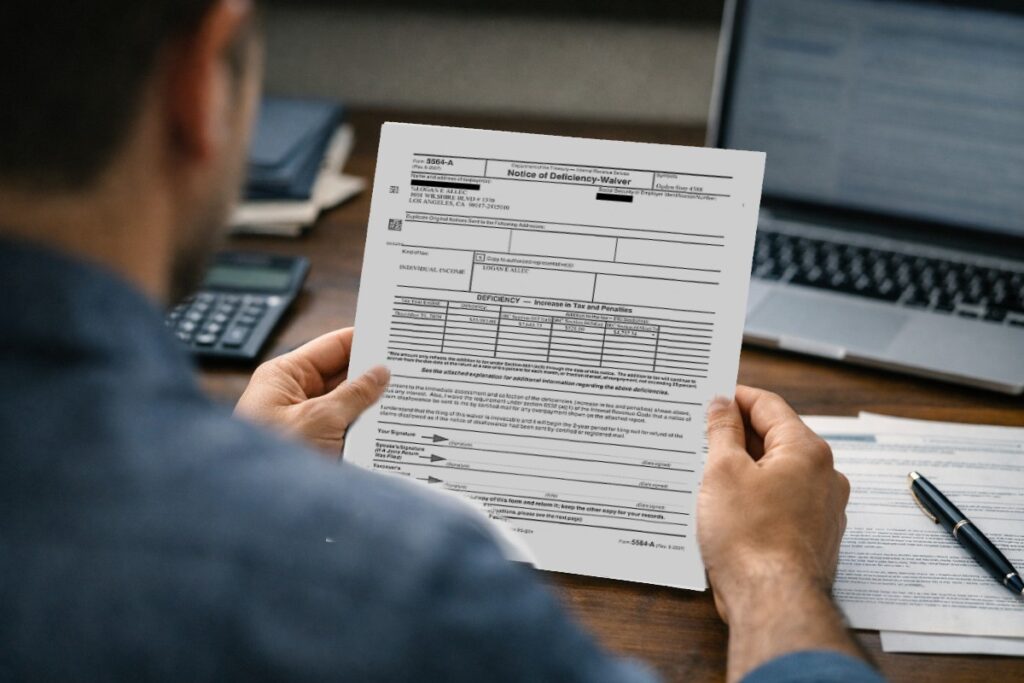
Completing Form 5564 (Notice of Deficiency Waiver) in the CP3219A Context
Form 5564 as included with a CP3219A has a narrower purpose than the CP2000 response form: it is solely a waiver of Tax Court rights. Its sections are:
- The tax year and proposed deficiency amount (pre-printed)
- Your agreement to the proposed deficiency as a consent to assessment
- Your signature and date
There is no disagreement checkbox on Form 5564 in the CP3219A context. It is an agreement-only document. If you do not agree with the proposed deficiency in the CP3219A, do not sign Form 5564 – petition the Tax Court within the 90-day window instead.
Completing Form 5564 from the CP3219A:
- Confirm the tax year and proposed deficiency amount are correct for your account
- If you are satisfied that the proposed amount is correct and you wish to accelerate assessment, sign and date the form
- Mail the signed form to the address on the CP3219A
Do not mail Form 5564 to a general IRS address. Use the address specified on the CP3219A.
Errors That Prevent Correct Processing
- Missing signature: one of the most common errors; always sign before mailing
- Missing spouse signature on a jointly filed return: the IRS requires both signatures and will not process a response with only one on an MFJ return
- Checking the agreement box without attaching payment information when payment is due: this is not a fatal error, but it slows the process
- Checking the agreement box when you intended to dispute some items: the agreement is processed as written; a partially completed disagreement response is not extracted from a checked agreement box
- Mailing to the wrong address: always use the address on the specific notice, not a general IRS mailing address
- Including original documents instead of copies: the IRS does not return submitted documents; send copies only
- No exhibit labels on attachments: unlabeled documents that are not referenced in the written explanation may be overlooked during examiner review
Summary
Completing a CP2000 response form or Form 5564 correctly requires verifying the pre-printed identifying information, checking the right agreement or disagreement box based on a fully informed review of the proposed changes, dating and signing the form (with both spouses signing on joint returns), completing the calculation section if present, and attaching a written explanation and supporting documentation for every disputed item. Errors in the signature block or agreement checkbox are among the most common and consequential mistakes; address them before mailing.
Return to Hub:
Return to the Forms and Documents section for more explanations of IRS paperwork and response requirements.
The information provided on this website is for general informational purposes only and does not constitute legal or tax advice. CP2000response.com is not affiliated with the IRS, any law firm, or government agency.